
Go High Level’s default contact fields are fine for basic contact management. But they won’t give you the data you actually need to understand your pipeline, attribute revenue correctly, or trigger sophisticated automations.
Custom fields are where your GHL account goes from a generic CRM to a business intelligence asset. This guide covers which custom fields to build, why they matter, and how to use them.

Why Custom Fields Are Underused
Most GHL users stick with the default fields: first name, last name, phone, email, and maybe a few others. The pipeline moves along, deals close or don’t, and the data sits incomplete.
The cost of incomplete data shows up in reports. When you run a revenue attribution report and find that a large percentage of your won revenue has “Unknown” as the source, that’s a custom field problem. When you try to calculate your actual close rate and find that dates are missing from a quarter of your Won deals, that’s a custom field problem.
Custom fields are the foundation of accurate reporting — and accurate reporting is the foundation of smart business decisions.
The Custom Fields Every GHL Account Should Have
1. Closed Date
Type: Date
Applies to: Opportunities
GHL does not automatically record when a deal is marked Won. Without a Closed Date field, your revenue reports can only show when a contact was created — not when the deal actually closed.
How to use: Make this field required when marking a deal as Won. Build a workflow that automatically sets this field to today’s date when an opportunity enters the Won stage.
2. GCLID (Google Click ID)
Type: Text
Applies to: Contacts
The GCLID connects a Google Ads click to a closed deal. Without it, offline conversion tracking becomes difficult and ad platforms optimize for leads instead of actual customers.
How to use: Capture GCLID through hidden form fields and store it on the contact record. Export it when sending offline conversions back to Google Ads.
3. Lead Source
Type: Dropdown
Applies to: Contacts
This field identifies where every lead originated and is essential for attribution reporting.
Suggested Options:
- Google Ads
- Facebook Ads
- Organic Search
- Direct
- Marketplace
- Referral
- Outbound
- Other
How to use: Auto-populate this field through workflows instead of relying on manual entry.
4. UTM Campaign
Type: Text
Applies to: Contacts
Lead Source identifies the channel. UTM Campaign identifies the specific campaign that generated the lead.
How to use: Capture the utm_campaign parameter via hidden form fields and store it on the contact record.
5. Vehicle / Product Interest
Type: Dropdown
Applies to: Opportunities
Businesses offering multiple products or services need visibility into what each lead is interested in.
How to use: Use this field for lead routing, product-specific nurturing, and reporting.
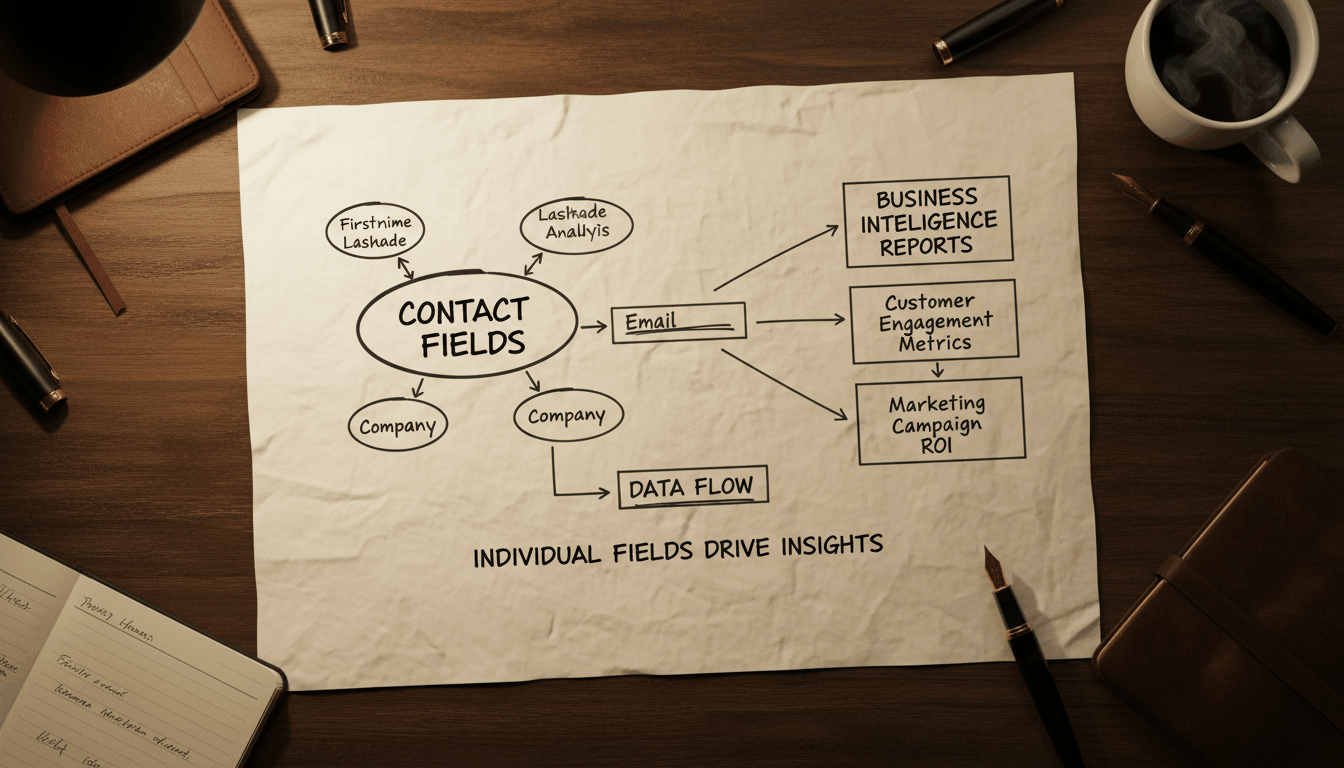
6. Last Contacted
Type: Date
Applies to: Contacts
This field helps identify stale leads that haven’t received recent communication.
How to use: Update automatically whenever a call, SMS, or email is sent to the contact.
7. Deal Value
Type: Number or Currency
Applies to: Opportunities
While GHL includes an opportunity value field, additional value fields can help separate quoted value, recurring revenue, and closed revenue.
8. ICP Score or Category
Type: Dropdown
Applies to: Contacts
If you’ve developed an Ideal Customer Profile (ICP), use this field to classify incoming leads based on fit.
Suggested Options:
- A – Perfect ICP
- B – Good Fit
- C – Marginal Fit
- D – Outside ICP
High-scoring leads can receive priority follow-up while lower-scoring leads enter alternative nurture sequences.
Building Custom Fields in GHL
In Go High Level, navigate to Settings > Custom Fields.
For each field:
- Select the appropriate field type.
- Use clear and consistent naming conventions.
- Choose whether the field applies to Contacts, Opportunities, or both.
- Determine whether the field should appear on records or cards.
- Define how the field will be populated.
Maintain documentation for all custom fields so team members understand their purpose and avoid creating duplicate fields.
Auditing Your Custom Fields
If you’ve been using GHL without a defined custom field strategy, conduct a data audit.
- Count contacts with a blank Lead Source field.
- Count won opportunities with a blank Closed Date.
- Measure how much of your reporting is based on incomplete data.
These gaps represent your attribution blind spots.
Fix the structure first by creating missing fields and building automations that populate them going forward. Historical data may remain incomplete, but future reporting accuracy will improve significantly.
Final Thoughts
Custom fields are one of the most powerful but underutilized features inside Go High Level.
By tracking data points such as Lead Source, Closed Date, GCLID, Product Interest, and ICP Score, businesses gain cleaner reporting, more accurate attribution, and smarter automation capabilities.
The businesses that make the best decisions are usually the businesses with the best data. Custom fields are where that process starts.